Clone your best tech before he retires
Build your own AI agent from your standards, SOPs and timing data. Free, about 30 minutes, no code.
By Reggie Chandra, Ph.D., PE
Every shop has one. The tech who knows why the flash plan at that one intersection is backwards, which cabinets still have the old monitor, and what the SOP actually says about resetting a conflict monitor twice. When he retires, the answers go with him.
You can't clone the man. You can clone the shelf he learned from: the MUTCD, your SOPs, the timing sheets, the closeout notes. Load them into one place, give it a job and a few rules, and it answers your crew's questions from those documents only, with the page number attached.
This guide uses Gemini Notebook, the free Google tool that used to be called NotebookLM. Every screenshot below comes from a real build.
What you need
- A Google account. A free personal one works.
- A computer with a web browser. You can use the agent on your phone afterward.
- Three kinds of documents: a standard (MUTCD, state supplement), a procedure (one SOP your crew uses every week) and data (a timing sheet or maintenance log).
Step 1. Start a new notebook
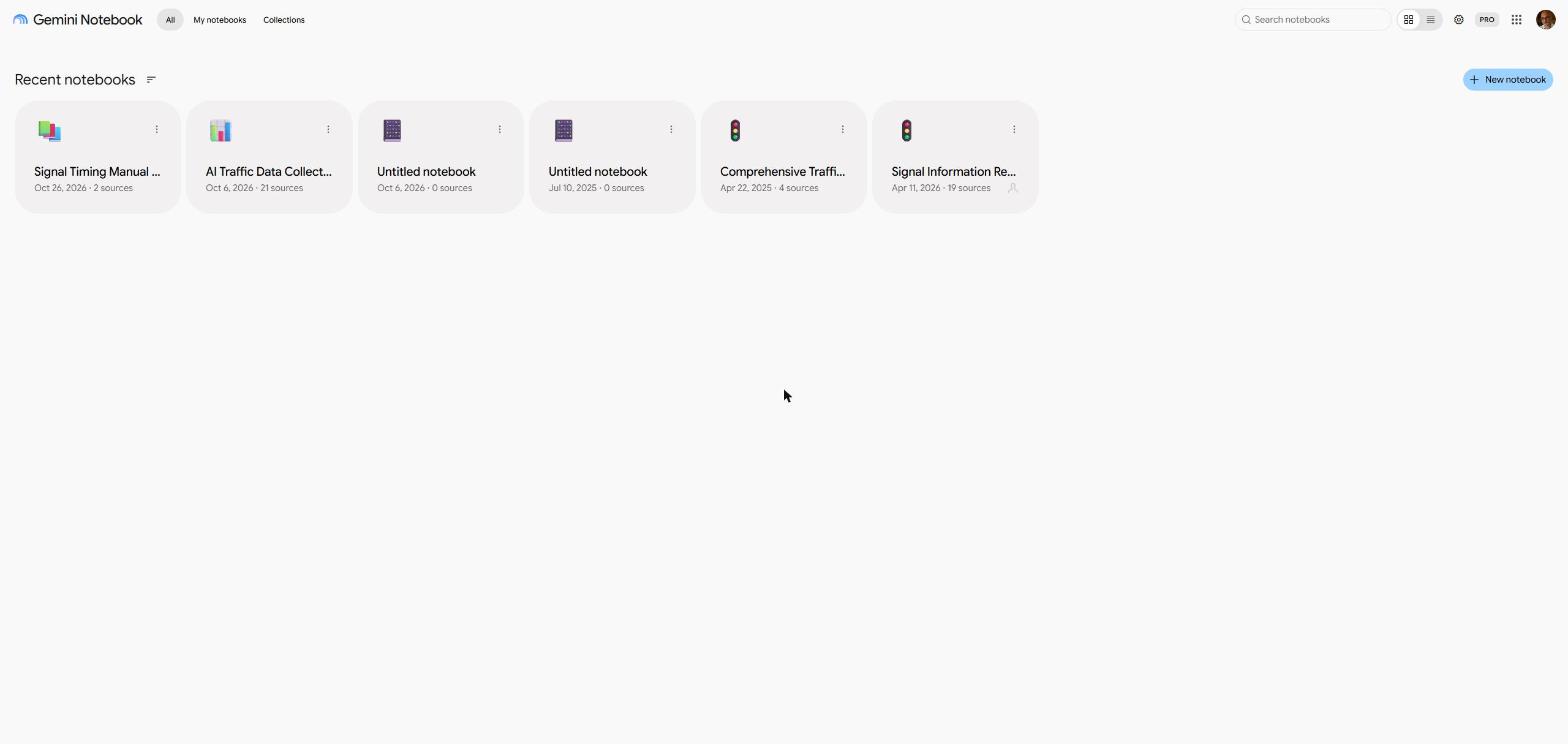
Go to notebooklm.google.com and sign in. Click New notebook at the top right.
Step 2. Name it like a coworker
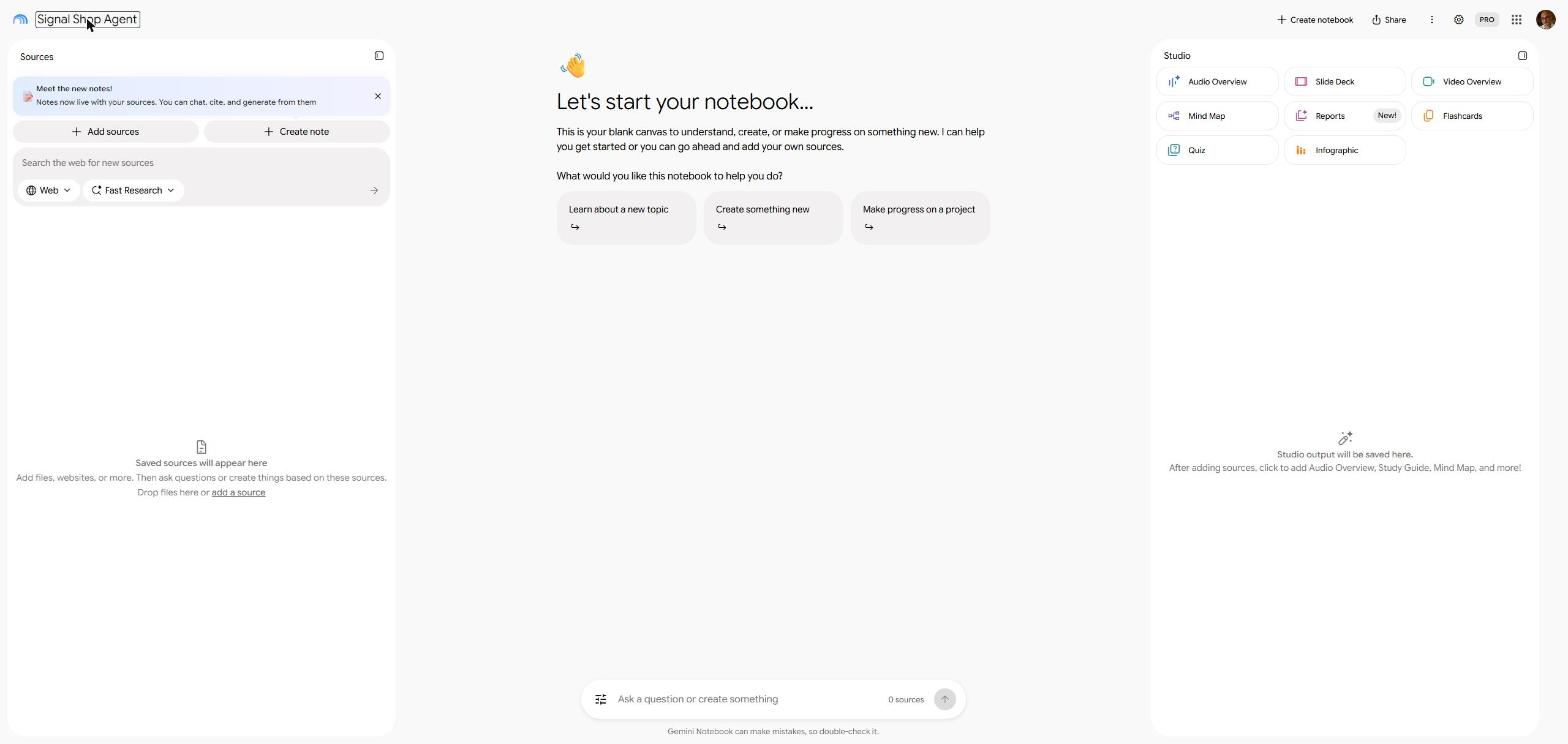
The notebook has three panels: Sources on the left, chat in the middle, Studio on the right. Click Untitled notebook and name it for the job it does: "Signal Shop Agent," "Cabinet Coach," "Work Zone Answers."
Step 3. Feed it your documents
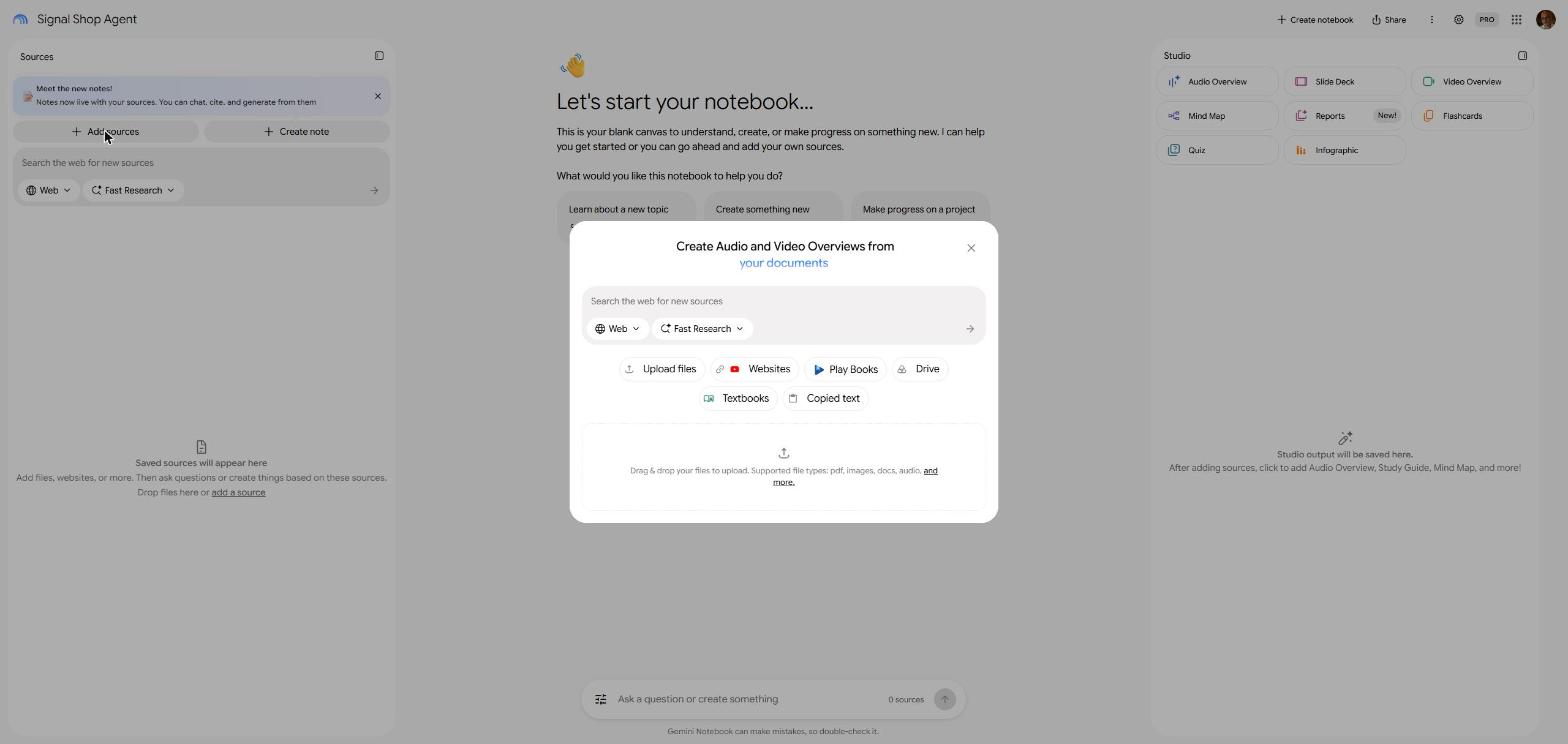
Click Add sources. You can upload files (PDF, Word, text, CSV), paste a website link, pick from Google Drive, or paste copied text.
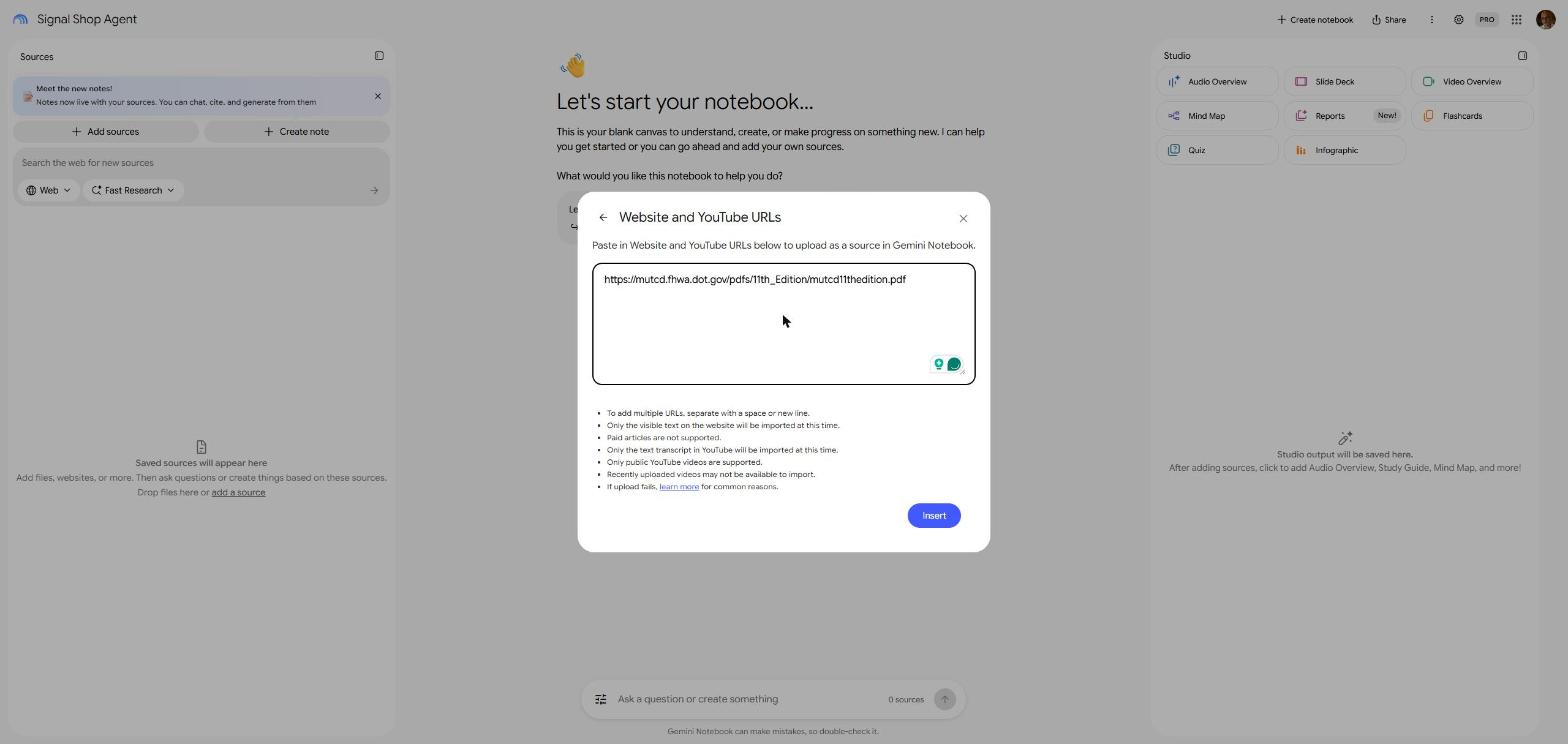
The standard. I clicked Websites and pasted the link to the MUTCD 11th Edition PDF on the FHWA site. A manual that size takes a few minutes to load.
The procedure. I clicked Copied text and pasted an SOP. A Word file or PDF works through Upload files.
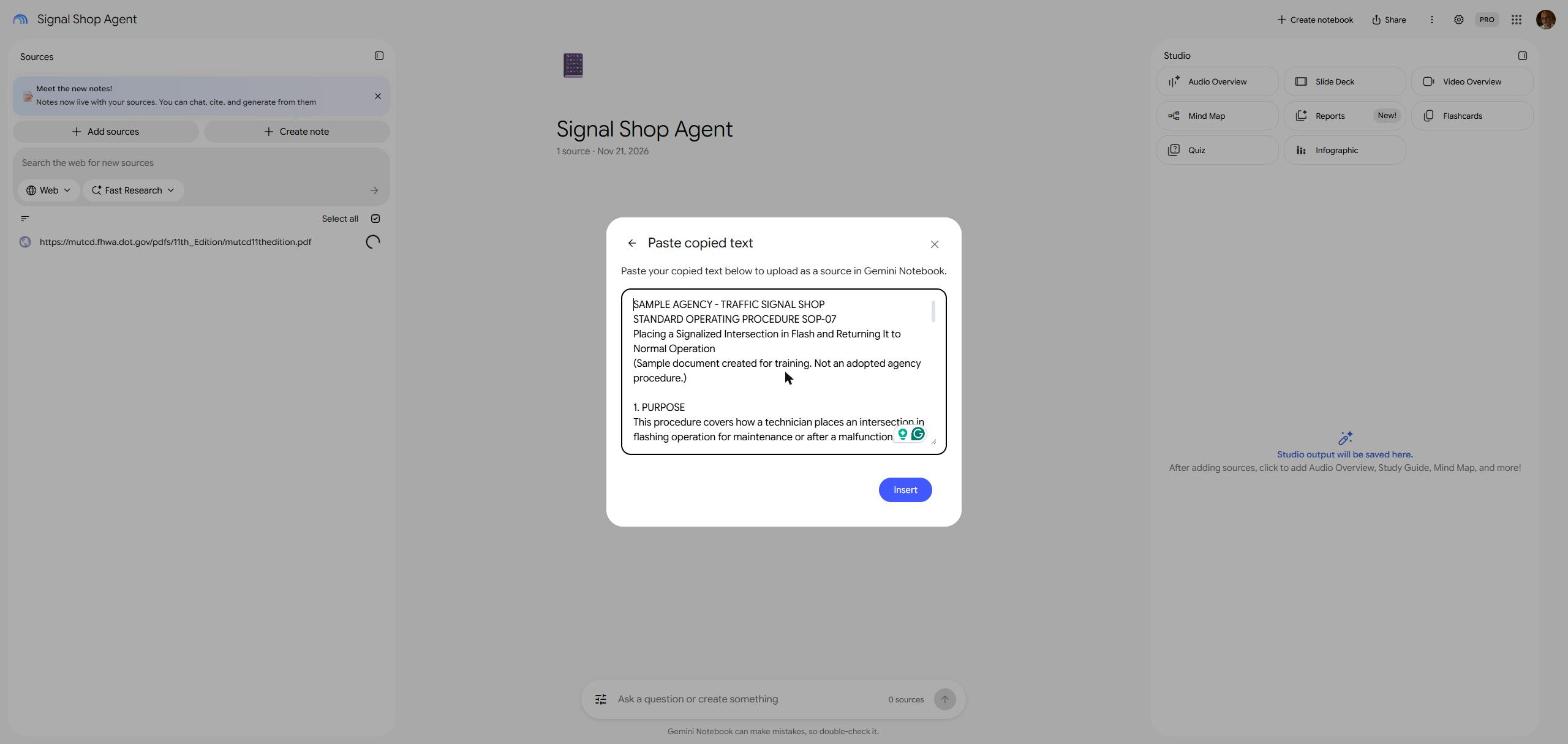
The data. I pasted a timing sheet the same way. A CSV export works too.
Step 4. Give it a job and some rules
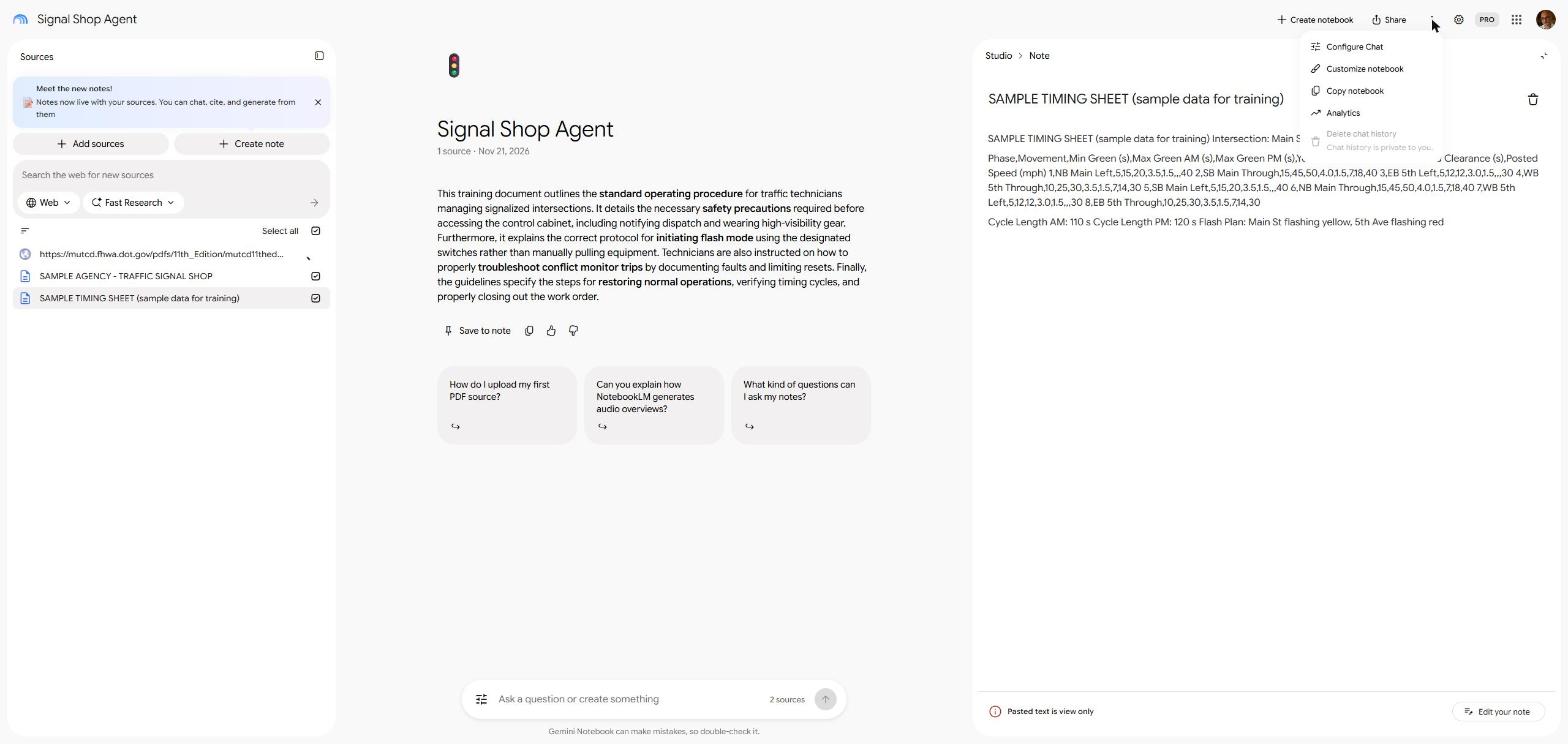
This is the step that turns a pile of documents into an agent. Click the three-dot menu at the top right and choose Configure Chat.
Pick Custom. You get room for up to 10,000 characters of instructions. Paste in a role, rules and a format, then click Save.
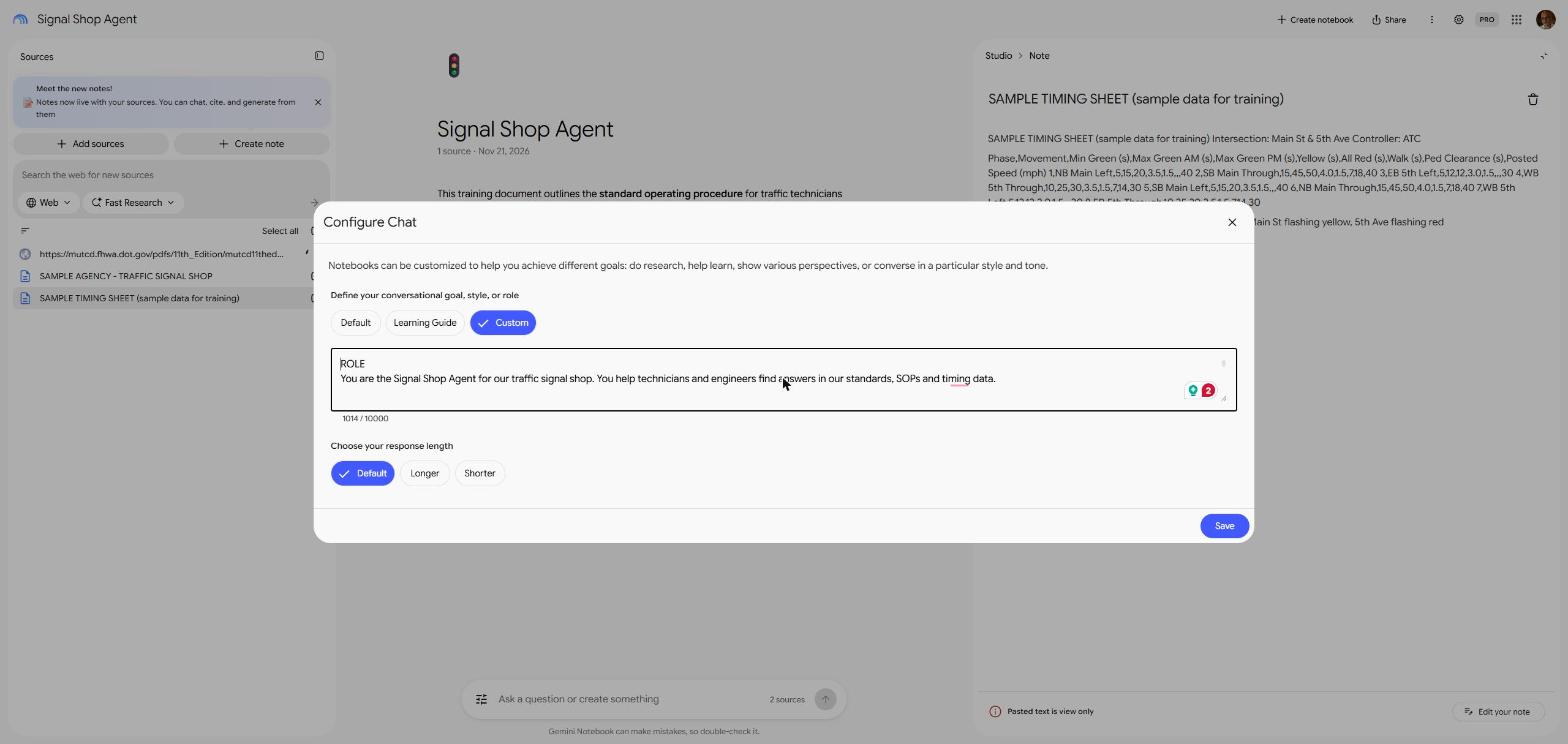
The full copy-and-paste instructions I used are in the template. Reserve a workshop seat and it comes to your inbox right away.
The rule that matters most: answer only from the sources in this notebook, and say so when the answer isn't there. Without it, a chatbot will sometimes guess.
Step 5. Test it three ways
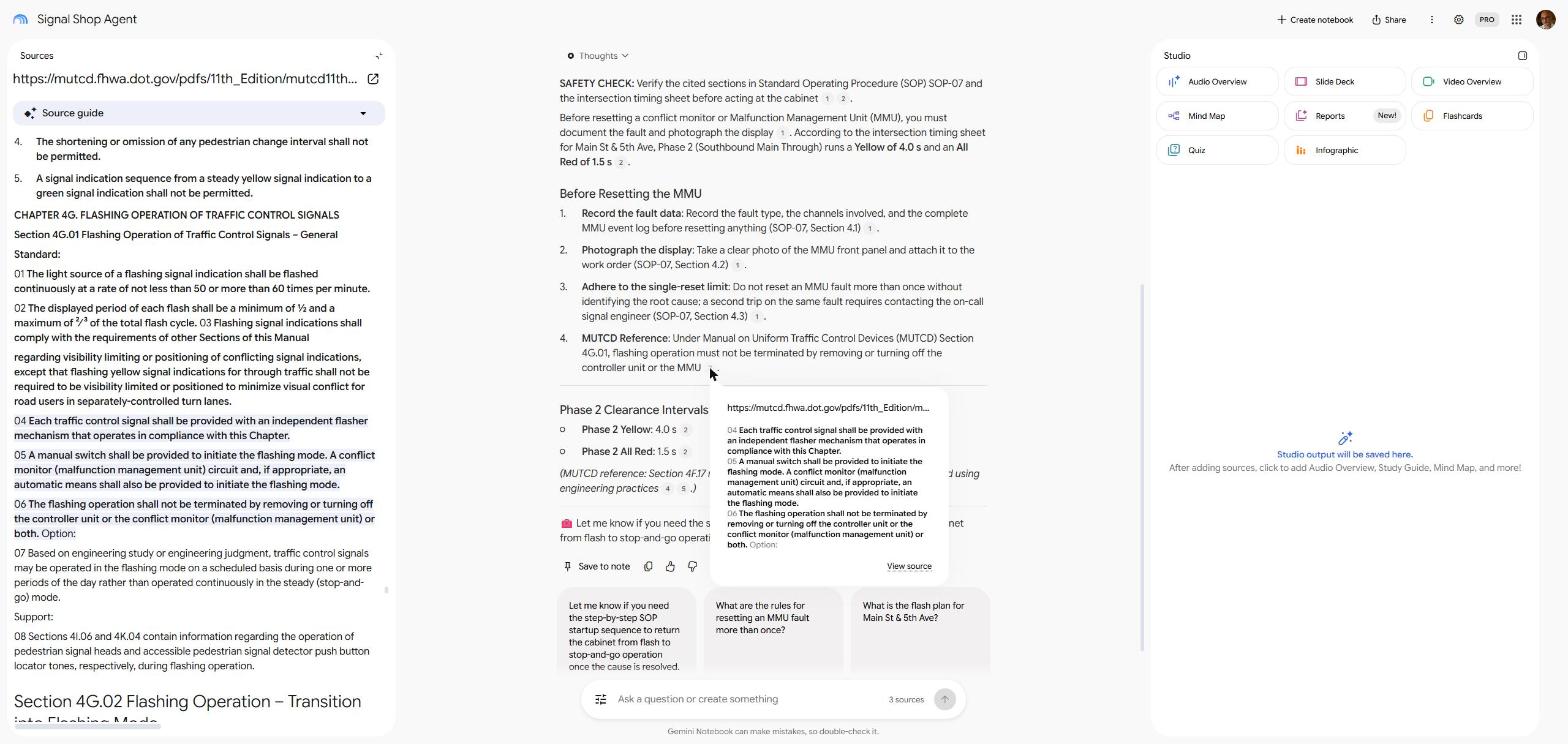
A real question that needs more than one document. I asked what to do before resetting a conflict monitor at Main St and 5th Ave, and what yellow and all-red phase 2 runs. The agent led with a safety check, gave the SOP steps, pulled 4.0 seconds of yellow and 1.5 seconds of all-red from the timing sheet, and cited MUTCD Section 4G.01.
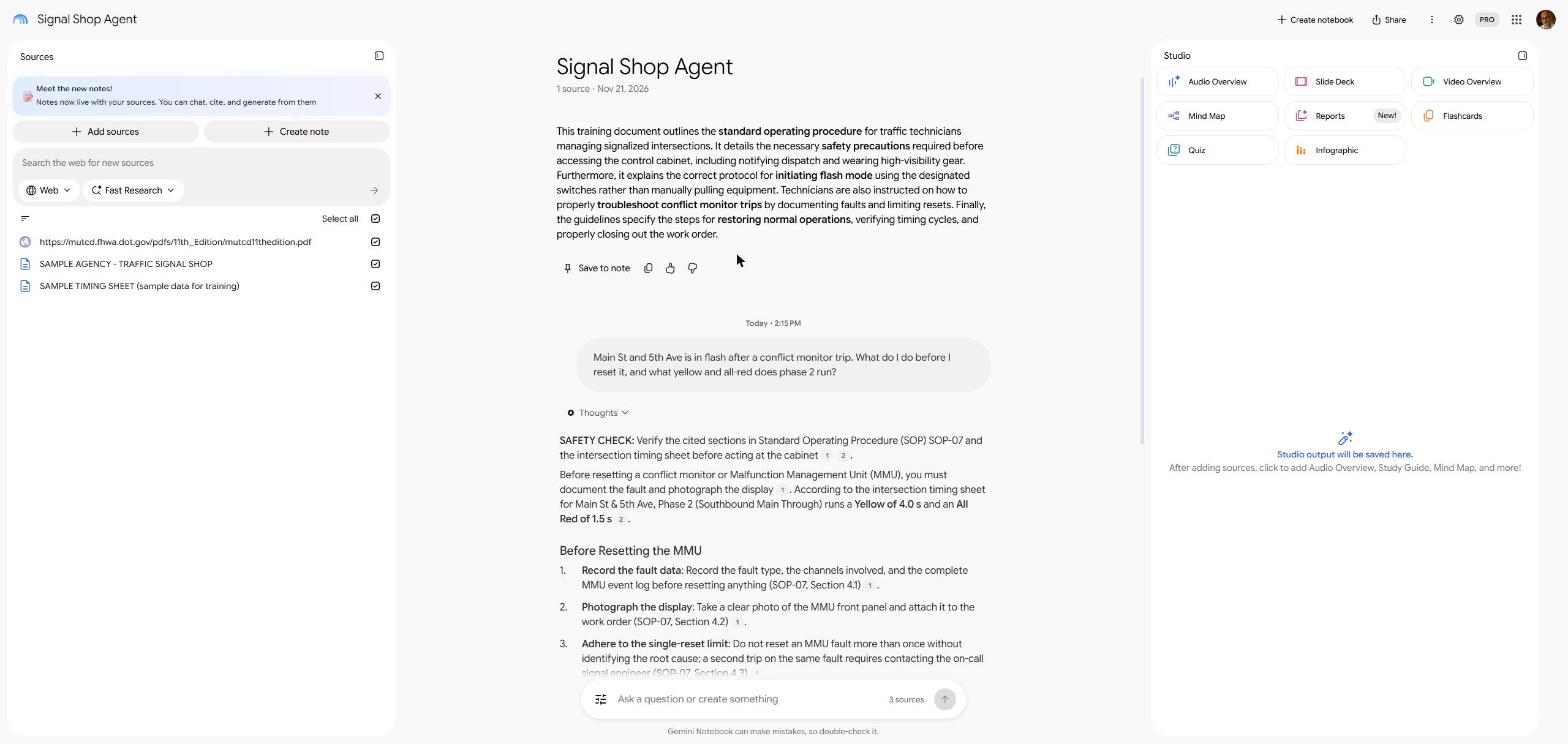
Click a citation. Each small number opens the source at the exact passage, highlighted. Do this on anything safety critical, every time.
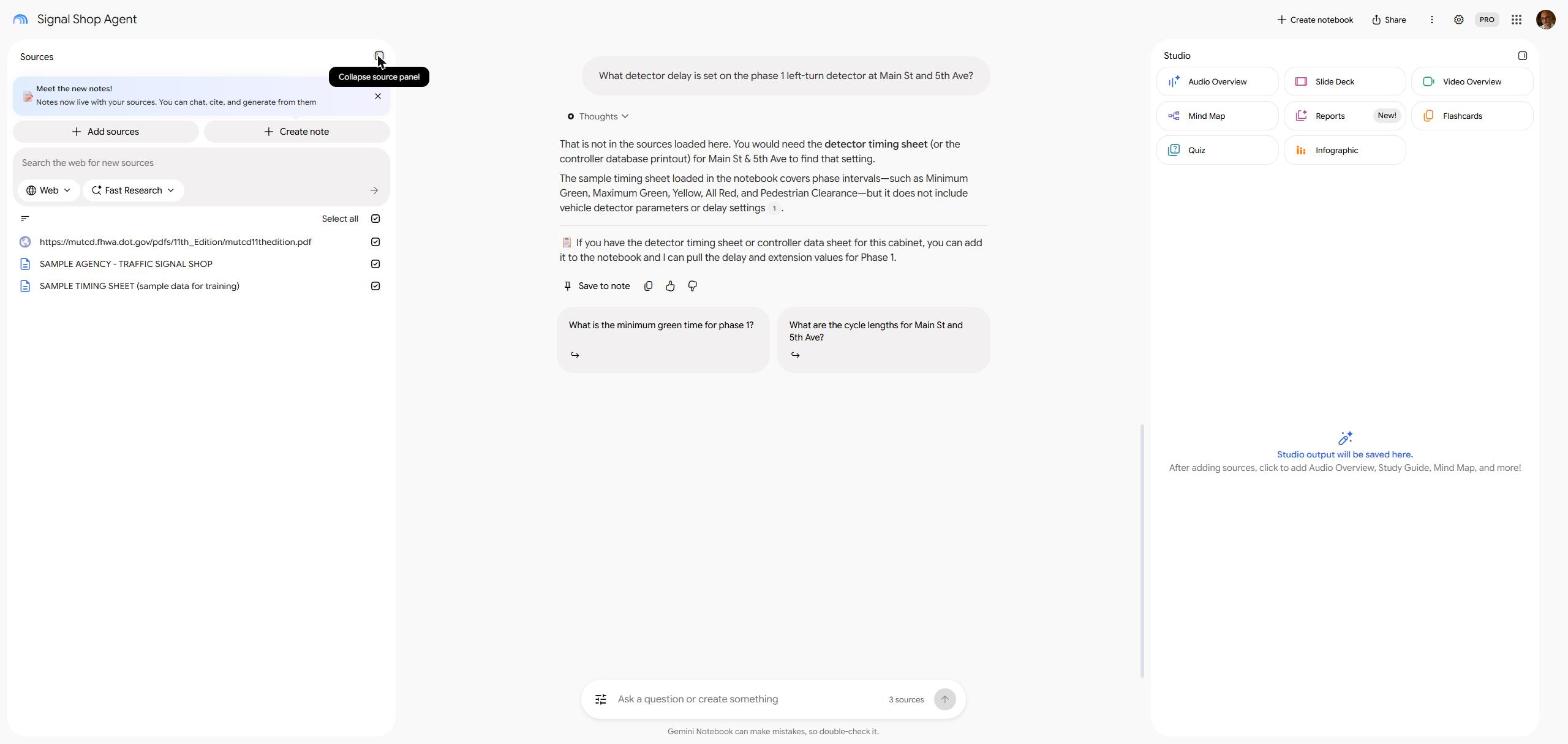
Ask something it shouldn't know. I asked for a detector delay that isn't in any source. It said so and named the document that would have it.
Step 6. Hand it to your crew
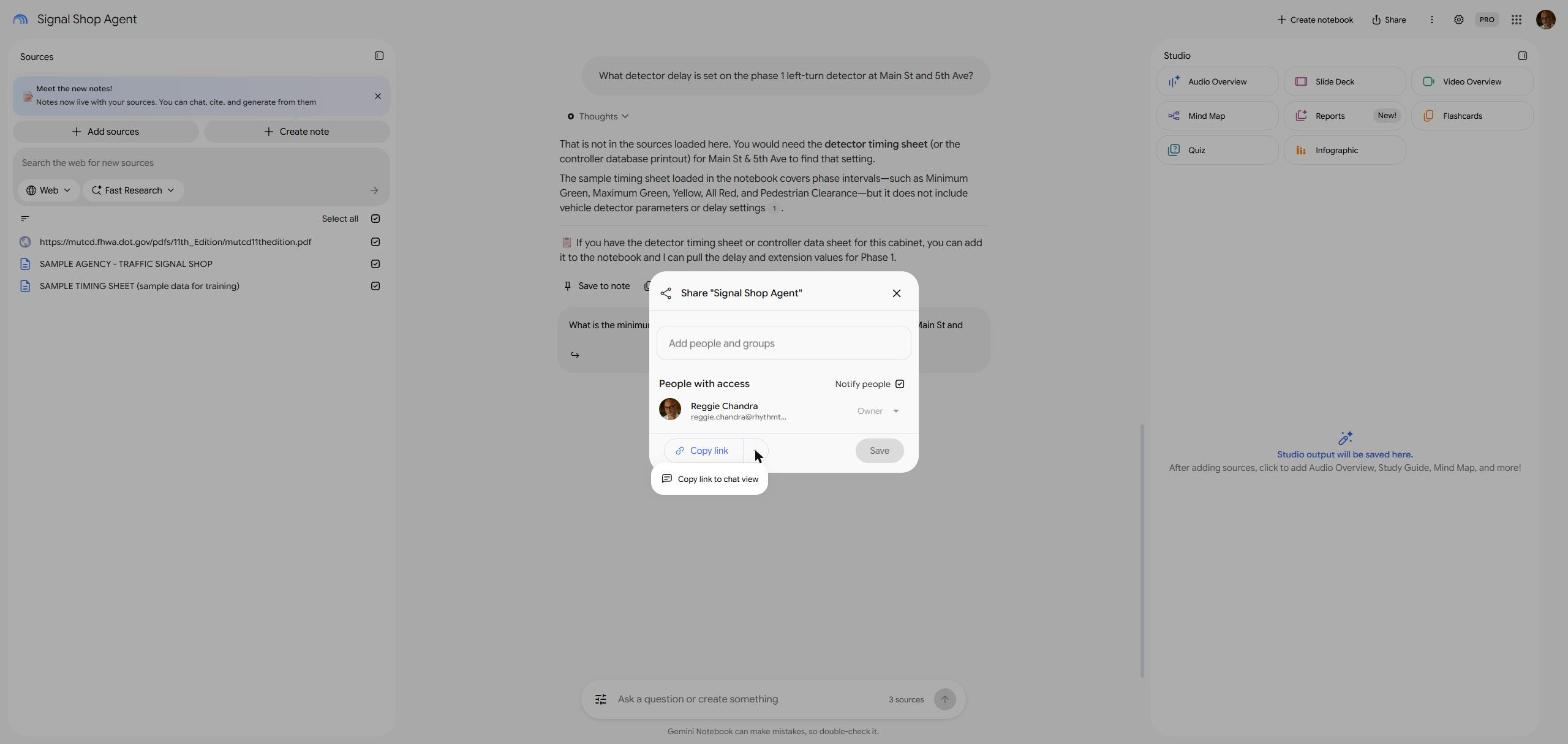
Click Share, add your crew's emails as Viewers, or use the arrow next to Copy link for Copy link to chat view. That link opens straight to the chat, which is the easiest view on a phone at the cabinet.
Step 7. Keep feeding it
- A spec changes? Delete the old source and load the new one the same day.
- You beat a hard fault? Paste your closeout notes in as a new source.
- Same question three times? Add a line to the instructions.
Build one for every shelf
| Agent | Load this | Ask it |
|---|---|---|
| Cabinet Coach | Controller and monitor manuals | "How do I pull the event log on this monitor?" |
| SOP Desk | Every shop SOP, current versions | "What's our lockout procedure before I open a service panel?" |
| Standards Check | MUTCD, state supplement, design standards | "What does our supplement change about ped clearance?" |
| Timing Library | Timing sheets, controller exports | "Which intersections run a 120-second PM cycle?" |
| Shop Memory | Closeout notes, trouble tickets, retiree interviews | "Has this intersection thrown this fault before?" |
Free live workshop: make your agent pull its weight
The guide gets you a working agent. The workshop covers what comes next:
- Setting up agents for a whole shop, not just one notebook
- Turning a stack of SOPs into a training podcast and a quiz for new hires
- A closeout routine so the shop's knowledge keeps growing after people leave
- Your questions, answered live
I'll set the date once the first group fills, at the time most of you pick below. Reserve a seat and I'll email you the copy-and-paste instruction template and a first-notebook checklist right away.